
Mapping: Charting Cosmic Paths
Explore how UI Animation brings the concept of Mapping to life by dynamically connecting user actions with system responses, providing a clear and engaging experience.

Overview
Mapping animations serve as navigation aids within the interface, helping users comprehend spatial relationships between elements. These animations provide clear indications of users’ current position, where they’ve been, and potential destinations within the interface.
Mapping animations are instrumental in preventing users from becoming disoriented within the interface. They offer context and guidance, facilitating seamless navigation across various sections and features. Implementing mapping animations ensures users maintain a precise mental map of the interface’s structure, resulting in a more enjoyable and efficient journey.

Mapping Guidelines

Celestial Courses through Mapping Animation
1. Visual Continuity
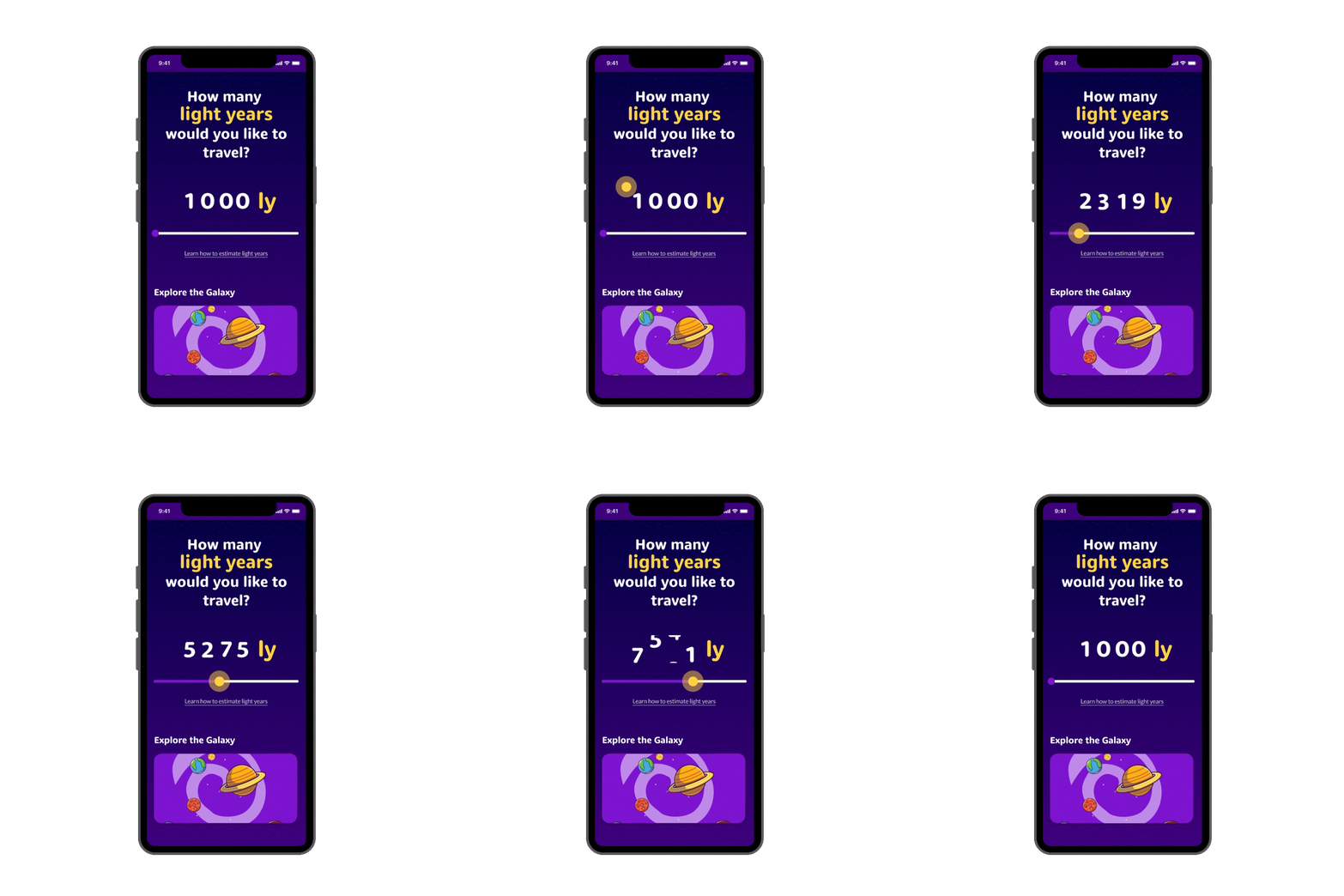
Use animation by letting an element stay in place during a state change. Visual continuity makes transitions easier to understand for users as each element stays the their original position even throughout the animation.
Example
A user selects a range or value using a slider control, and as they move the slider, the displayed range or value animates to show the change, creating a clear and direct connection between user actions and system responses.
2. Pathway Animation
Use animations to validate the information and showcase the link between an input field and information provided to the user.
Example
In a password creation form, when the user enters a password that is too short or too long, a real-time animation line is displayed showcasing in red the length of the password, getting the information to the user across faster. This shows the mapping between the password length and the feedback provided to the user.
3. Contextual Layering
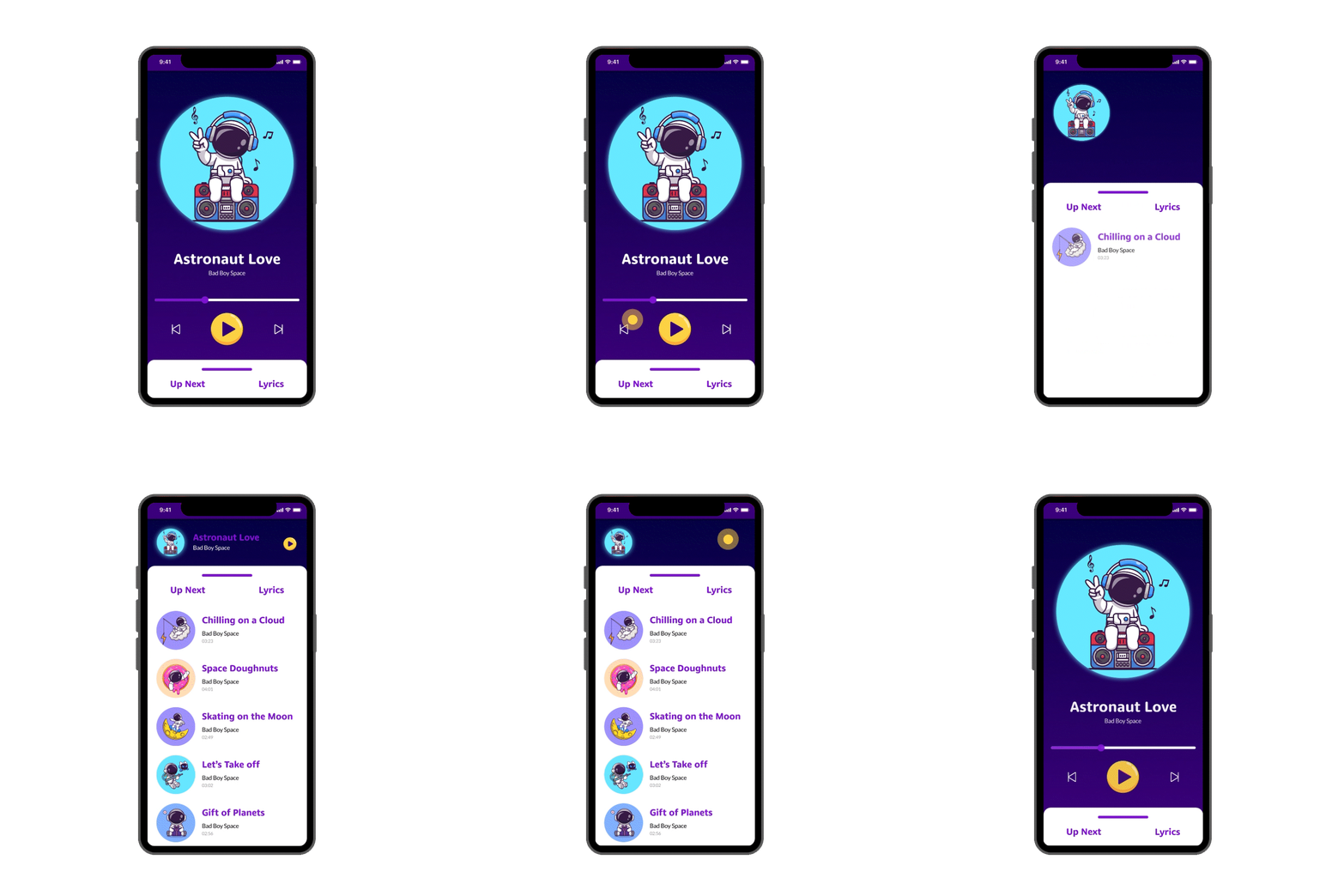
Use animations to layer and rearrange interface elements based on user interactions, helping users understand the context.
Example
In a digital interface, clicking on a visual element, such as an image or icon, can trigger an animation that expands the element to reveal additional content while gently pushing the surrounding interface downward, creating a contextual layer. This design technique adds depth and context to user interactions.
Resource
Click on the button to go to the Mapping Animated Example Figma File.